Showing posts with label Group Policy. Show all posts

Wednesday, January 30, 2013

Folder Redirection wIth Group Policy


Folder Redirection


Folder Redirection in Group Policy allows a systems administrator to redirect certain folders from a user’s profile to a file server.


Part 1: Introduction


If you’re like me, you’ve probably gotten a frantic call from a customer because they have a computer that won’t boot and they have irreplaceable files on their local hard drive. Try adding clicking or grinding sounds coming from that computer along with no recent backup to the mixture. Sound familiar? That combination can add up to a very upset customer and possibly a very expensive bill if you have to get data restored from that failed hard drive.


The good news is that there is something you can start doing today to start combatting that problem: Folder Redirection in Group Policy. To get started with Folder Redirection, you’ll need to be running Active Directory (any functional level), have an available file server, and a management station running the Group Policy Management Console. As with most Group Policy, the latest version of the GPMC is preferred, but most of these settings are available in older versions.


So what exactly does Folder Redirection do? Folder Redirection takes common user profile folders from C:\Users (or C:\Documents and Settings\ in Windows XP) like the Desktop or Documents and puts them on a UNC path instead of the local hard drive of the computer. I


In addition to the immediate benefit of having that data on a file server that is much easier to keep backed up, the user also gets the benefit of being able to go to multiple computers in your organization and still have access to their data. Using the default Windows settings and the default share settings on your file server, these redirections will be even made available offline automatically for your users. (Don’t worry, this can be controlled separately in Group Policy, which we’ll cover in a later article.)


Documents Redirected in Windows 7


In the GPMC, the Folder Redirection settings can be found in User Configuration > Policies > Windows Settings > Folder Redirection. If you’re using the GPMC in Windows XP, you can redirect Application Data, Desktop, My Documents, and the Start Menu. In addition, folders in Windows XP that are inside the My Documents folder like My Music and My Pictures will follow My Documents when it is redirected.


GPMC in Windows XP Showing Folder Redirection


If you’re using the GPMC in either Windows 7 or Windows Server 2008 R2, you’ll see that the list of folders that can be redirected is much longer. AppData (Roaming), Desktop, Start Menu, Documents, Pictures, Music, Videos, Favorites, Contacts, Downloads, Links, Searches, and Saved Games can all be redirected in Vista, 7, Server 2008, and Server 2008 R2.


GPMC in Windows 7 Showing Folder Redirection

 PART 2: SETTING UP YOUR FILE SERVER


Before you set up Group Policy for Folder Redirection, you need a properly configured file server. In my examples, I’ll be using Windows Server 2008 R2, but earlier versions will have the same settings, more or less.


The first decision you’ll need to make is on the share name. My preference is typically to use “Users” since we’ll be redirecting user folders. As an added step, you can make this a hidden share (by adding a $ to the end of the share name) if you think that is necessary for your file server. It is fairly easy for users to discover where their folders are being redirected. Personally, I’m not a big fan of hiding shares unless they are being used in DFS or there is another good reason to hide them; but, that is typically a personal (or organizational) preference.


Starting with the Sharing tab, you’ll want to share the folder by clicking the Advanced Sharing button. Click the “Share this folder” checkbox and the share name should fill in automatically. Caching should default to “Only the files and programs that users specify are available offline.” Click the Permissions tab. In Permissions, you can probably check the Full Control checkbox and OK, but make sure that works for your environment. If you provision Guest accounts or have users that don’t need access to the Folder Redirection share, consider limiting the share to Domain Users or smaller groups of users.


Share permissions


The easiest method for provisioning new folders for users is to allow the logon process to create all of the folders automatically as they are redirected to the file server. To do this, you’ll need to set the file permissions so that users can create folders, but not access the folders of other users. This can all be done in the GUI, but I prefer using the icacls.exe utility to set the file permissions for something like this so I can be sure I don’t miss something. Here are the commands you’ll need:


icacls.exe C:\Shares\Users /inheritance:d


This removes inheritance on the folder and copies the existing permissions. We want to do this for two reasons: first off, any permission changes to the volume or top-level folder will propagate down to your shared folder which we don’t want. Second, the default file permissions will give “Users” access to read everything in the folder… we don’t want that either.


icacls.exe C:\Shares\Users /remove:g Users


Remove “Users” access to the folder so that users can’t get nosey and go through other users’ files.


icacls.exe C:\Shares\Users /grant Everyone:(x,ra,ad)
Give “Everyone” execute/traverse (x), read attributes (ra), and append data/add subdirectory (ad). After running the command, your permissions should look like this:
Administrators (Full Control) – This folder, sub-folders, and files
SYSTEM (Full Control) – This folder, sub-folders, and files
CREATOR OWNER (Full Control) – Sub-folders, and files
Everyone (Special – Traverse Folder/Execute File, Read Attributes, Create Folders/Append Data) – This folder only


File permissions

PART 3: EXPLANATION OF FOLDER PERMISSIONS


At this point, you may have noticed that we didn’t give our users very many permissions on the Users folder. First and foremost, we made sure that one user can’t see inside of another user’s folder. It’s also pretty obvious that we don’t want to give users the ability to do things like take ownership, delete files/folders, or change permissions, but a few of the other missing permissions take a little more explanation.


First off, you don’t want users to have Create files/write data permissions or they can save files into the root of the shared folder. Since we’re redirecting folders, we only want the users to be able to create folders in the root Users folder, but not individual files. Once the user creates a folder named %username%, the CREATOR OWNER permission will take over (since it is a sub-folder of Users) and will give the account full control over the %username% folder and everything inside of it.


Second, List folder/read data is also missing because we don’t want users to be able to enumerate folders in the share. Here’s what it will look like to the end user if they try to go to \\fileserver\Users:


User can’t enumerate folders


However, if the user tries to go to \\fileserver\Users\%username%, he can see all of his folders:


User CAN see inside username folder


To the Administrator, you’ll still be able to see everything on the server:


Redirected folders on server


Why would you want to do it this way? The biggest reason is that we’re giving the user the ability to create folders in the Users share. That means that there is nothing to stop a user from creating a few hundred folders and then saving files into those folders inside of Users. By removing the ability to enumerate folders in the Users share, you eliminate the ability of the user to see what is in the folder. It doesn’t stop the user from being able to create other folders or copy data into them, but it makes is much more difficult to use should they decide to try.


The other big benefit you get is that users can’t see the other user account folders that are stored in the Users share. Can’t I do that with Access Based Enumeration? Yes… Access Based Enumeration will essentially hide any files/folders to a user that he/she doesn’t have permissions to see; but, it doesn’t solve the problem of the user being able to create new folders in your Users share. If you enable Access Based Enumeration and allow users to enumerate the contents of the share, they’ll just see their %username% folder and all of the other folders they’ve created there.

  PART 4: GROUP POLICY CONFIGURATION


Now that we have a server with a share configured, we’re ready to set up the Folder Redirection in Group Policy. Folder Redirection is User configuration. Because of that, you’ll need to either create a new Group Policy Object (GPO) or edit an existing GPO that is linked to an OU for your users.

 Go to User Configuration > Policies > Windows Settings > Folder Redirection.


GPMC in Windows 7 Showing Folder Redirection


Right-click on one of the folder names and click Properties. In my example, I’ll be using Documents. The first thing you’ll want to set in the Target tab is how you want to redirect folders: Basic or Advanced. If you’re planning on directing every user to your new User share, then Basic will probably do for you. If you have multiple shares for Folder Redirection (possibly for departments or geographical locations), you can choose Advanced and assign specific folders for groups.


Folder Redirection Properties


Next, you’ll need to determine where you want to redirect the user folders. In most circumstances, you’ll probably want to use “Create a folder for each user under the root path.” However, you can also use a user’s home directory (if you have that attribute configured in AD), a specific path (for labs or common area computers where every user should share certain folders), and the local user profile (useful if you don’t want users reconfiguring folder locations).


Target folder location


Type in the name of your server and the path to your Users share. If you used the option to create a folder for each user under the path, you’ll see that your folder structure should be in the format \\fileserver\Users\%username%\redirectefoldername for each Folder Redirection you configure.


Root Path setting


Go to the Settings tab. Uncheck the checkbox by “Grant the user exclusive rights to Documents.” If you don’t uncheck this setting, the permissions will be configured so that even Administrators won’t be able to access the files without changing the folder permissions.


Settings Tab


Choose the settings for the remaining options that work for your environment and click OK.


That’s it! All you need to do is go to your test system, refresh Group Policy, log off, and log back in. Just be aware that when you run gpupdate, you’ll get a reminder that you need to log out and back in for the changes to take place.


  PART 5: BEST PRACTICES


After implementing this in several organizations, I’ve discovered several issues that may be of interest if you’re planning on implementing Folder Redirection.
TEST, TEST, TEST


If you’ve read other Group Policy articles I’ve read, I harp on testing. Sorry, but way too many people make a change in a production environment before trying it out on test systems first.
COMMUNICATE TO END USERS


If Folder Redirection is new for your users, make sure they know the change is coming. Most users will never notice until they accidentally delete a file or have a machine die and you become their hero.
SLOW LOGONS AFTER IMPLEMENTATION


One of the things you’ll need to communicate with users if you have pre-Windows 7 computers is that they may see slow logons the first time they log into their computers after Folder Redirection is implemented. Not only are everyone’s files being copied to the file server, but the server’s NIC and the network will probably be saturated with file transfer traffic. (Microsoft improved this in Windows 7 with Fast First Logon.


 BROKEN SHORTCUTS AND RECENT DOCUMENTS


If users have created shortcuts to documents or folders inside of folders that you’re redirecting, they may end up with broken shortcuts. The same is true for the Recent Documents feature in applications like Word and Excel.

 WHICH FOLDERS TO REDIRECT


Decide beforehand what you want to redirect vs. what you really need to redirect. Is it really important to redirect Downloads? How about Saved Games? Everything you redirect is going to have an impact on how much storage you need.


 PLANNING STORAGE


For your shared folder, you’ll want to make sure that the share is on a volume that is large enough to handle the amount of data that your users will be storing. There are a few ways to accomplish this, but most of them depend on your server environment. If your file server is a virtual machine, you can always expand your virtual disk and then expand the volume in Windows if you start to run low on disk space later. In the event you’re using a physical server connected to some kind of Fiber Channel or iSCSI SAN, you can do pretty much do the same thing: Expand the volume on the SAN and then expand the volume in Windows.


The amount of storage you’ll need can vary widely depending on the types of users you’re supporting. I’ve seen administrative users (accountants, HR, etc.) users use as little as a few hundred megabytes and engineers use hundreds of gigs. Plan accordingly!


 FILE SERVER CONFIGURATION


File server configuration can have an impact on Folder Redirection. Just be aware that things like antivirus or an IDS application can impact your users. Also be aware of whether or not File Screening is being used to block files on your file server since this will impact Folder Redirection also.

 CONSIDER USING DFS


If you’re already using DFS, seriously consider using DFS for your folder redirections. In the event you need to change servers or create a more redundant file server, everything you need is already built in to DFS.

 STOPPING FOLDER REDIRECTION FOR LABS AND KIOSKS


If you have training facilities, kiosks, or other computers where you don’t want user folders being redirected, you’ll need to use loopback processing. In most cases, using Replace will be the easiest since it will just ignore all of the User Configuration. In the event you do decide to use Merge, make sure you set a User policy that redirects all of the folders to the local user profile.

 OFFLINE FILES


In most circumstances, the default settings for Offline files will probably be adequate. In the event you need to change those settings, Offline Files can be configured for the entire computer in the GPMC at Computer Configuration > Policies > Administrative Templates > Network > Offline Files. On the user side, it is located in User Configuration > Policies > Administrative Templates > Network > Offline Files. By default, Redirected Folders will be made available offline. On both sides, you can disable Offline Files by setting “Prevent use of Offline Files” to Enabled.


Folder Redirection – Prevent use of Offline Files

 DISABLED OFFLINE FILES AND SERVER AVAILABILITY


In the event you need to disable Offline Files for security reason, you’ll want to make sure that your file server is as highly available as possible. In the event your file server does need to be offline or reboot, just be aware that any logged in users will immediately lose access to their files until the file server becomes available again.


Troubleshooting Group Policy


Troubleshooting Group Policy

Group Policy is a great tool that can make your life a lot easier as a systems administrator. But, what do you do when computers or users aren’t getting the correct policies? In this series, we’ll take a look at things you can do to prevent problems, common problems people have with Group Policy, and steps you can take to troubleshoot misbehaving Group Policy.

“An ounce of prevention is worth a pound of cure.” — Benjamin Franklin. Those words definitely ring true for deploying new Group Policy settings. There are a number of things you can do before deploying changes that may cost you some time up front, but will definitely save you time and grief down the road.

 Part 1: User Communication

KNOW YOUR CUSTOMER

How well do you know the business processes of the group that will be getting your Group Policy changes? If you’re planning on implementing Group Policy for the first time or making significant changes, these changes can potentially have ramifications on the business operations of the group that will be receiving the policy.

Take screensaver settings for example. Turning on the screensaver and locking the computer after 15 minutes may be perfectly reasonable in an office setting, but could cause major problems on a warehouse or factory floor where employees need to constantly see something on a screen, but don’t necessarily interact with the keyboard or mouse. On the other hand, 15 minutes could be way too high for a computer in a public location like a reception or customer service desk where someone could potentially walk in off the street and start using a computer that has been idle for a few minutes.

Engage your customer and find out how their department operates. Do they have software they use that no other department uses that could be affected by what you do? Are there things their employees are doing on their computers that they want stopped like setting personal wallpapers? Are the settings that you’re planning to implement going to cause problems for their business operations? Asking a few questions up front can potentially prevent things from breaking because of the unforeseen consequences of changes.

COMMUNICATING CHANGES

If you’re making a change that is going to be noticed by your customers, you may need to prepare them for that. I helped someone roll out a company logo wallpaper and screensaver to around a hundred computers over a weekend. The change had been requested by the owner of the company to standardize their computers. Unfortunately, the change wasn’t communicated to the employees. On Monday morning, things were crazy for the lone IT person. Numerous employees logged support requests and several even complained to the company owner about the change. Ultimately, the policy change was left in place; but, a quick email from the owner about the change before it was made would have eliminated a lot of confusion from the employees and support requests to IT.

Even if the change isn’t necessarily going to be noticed by the typical user, you still need to let someone know that a change is taking place. Most Group Policy changes are fairly silent when they occur; the average user probably won’t know that something has been changed even if they are having problems. Having a few insiders in the office that are aware of the change can be very helpful once end users start encountering problems and may give you the opportunity to tweak the policy before the problem spreads to other users.

 Part 2: Test And Deploy

I can’t stress enough how important it is to test out your new Group Policy settings before you start pushing them out to end users. How do you know they will work correctly in the real world if you haven’t tested them in a controlled lab setting first?

CREATING A GROUP POLICY TEST ENVIRONMENT

In larger environments, IT departments may have a Test Active Directory Forest just for testing things like Group Policy. Unless you’re applying Group Policy to thousands or tens of thousands of computers, that may be overkill for your organization. Here’s what I typically do to test:

In my Active Directory (AD) organization, I like to keep a “Test” Organizational Unit (OU) that mimics a typical OU for a department. In that OU, I keep the same sub-OU layout, a few test user accounts, and test computers (usually virtual machines) where I can put any of my test Group Policy before I make it available to end users.

Within the Group Policy Management Console (GPMC), it is very easy to make copies of Group Policy Objects (GPOs) by going to the Group Policy Objects container in the Group Policy Management Console (GPMC), right-click on the GPO, choose Copy, and then right-click again, and choose Paste. I usually make a copy of the original GPO and include “TEST” in the name and link it inside of my Test OU. This gives me an OU where I can make changes to my policy without causing problems for existing users or computers.


GPMC with Test GPOs

Should I use physical computers for testing Group Policy or virtual machines? Personally, I prefer to test with VM’s. Why? If you mess up and lock down a computer to the point that it becomes unusable, you may have to re-image the computer. With a VM, you can rely on snapshots to go back in time without having to spend time or effort fixing the problem. Just be aware that if you decide to use Microsoft Virtual PC, the Undo Disks functionality is limited to rolling back to the last state of the VM. If you’re running Hyper-V, that is typically my choice for VM testing. If not, you can either spend the money for VMware Workstation or get VirtualBox for free.

TEST REAL WORLD SCENARIOS

When you test your new policies, ensure that you’re also testing against computers and/or users that had the old policies applied and that have been in use by real people. In a lab setup, operating systems have this habit of having cleanly applied images that have never been used. User accounts and the files and settings that account have access to are pristine and haven’t been customized or changed. Some user policies can be affected by previous settings in the user’s profile. The biggest place where this happens is Folder Redirection. You’ll want to make sure that the settings that you’re changing take both new logons and existing logons into consideration. A good way to do this is to have some users that can test your changes when you’re almost ready to roll them out to everyone.
STAGE CHANGES

Depending on the change you’re making, you may not want to roll it out to every user or computer at the same time. For major changes, I usually like to drop a few user and/or computer objects into the Test OU and allow those objects to run for a few days. In addition to being a good way to test how the change works in the real world, it gives me the chance to see if anything is going to break or cause problems for end users before the change is rolled out to everyone. It is much easier to deal with a few unhappy customers that are having problems than a lot!

“DOG FOOD” YOUR GROUP POLICY

As an IT department, I highly recommend “eating your own dog food.” From a Group Policy perspective, that means that you should have the same GPO’s applied to your day-to-day user account and computer that all of the other users in the organization are getting. It should also mean that new policies should get applied to you first. The quickest way to see how a Group Policy change will impact end users is to use it yourself every day. How do you know that a particular script makes logons slow if it doesn’t apply to you every day? How do you know that the screensaver timeout is too low unless you’re constantly having to log back in because you have the setting, too? How do you know that disabling certain settings hamper a user’s ability to work unless you have to deal with the same issue?

RESULTANT SET OF POLICY (PLANNING)

I’m mentioning the RSoP in Planning mode last because I personally have never gotten much usage out of it. In Active Directory Users and Computers, you can right-click on a User or Computer object, click All Tasks, and click Resultant Set of Policy (Planning) to see how policies will apply to users and computers. RSoP Planning will let you pick a user and computer and then select options like Site, slow network, Loopback mode, group memberships, and WMI filters to see what policies will be applied to a user and computer.


RSoP Planning Wizard

The problem? The output that you’re given makes it impossible to see the results of your policies. You’ll have to manually dig through everything. It is probably quicker to have a VM, drop it into your Test OU, and just test out the policies yourself to see if you’re getting the results you want. The gpresults.exe tool (which we’ll get to in a later article) gives much easier to read results.


RSoP Planning Results

Part 3: group policy not applied?

So you’ve got computers or users with Group Policy problems. Where do you start? Troubleshooting any problem is usually a process of elimination. A lot of people want to run directly to the Event Log of the computer having the problem. Before jumping on the first computer where Group Policy is not applied, I suggest asking a few questions first so you can eliminate possible causes. A little detective work up front can make tracking down the actual problem much easier and may save you some time digging through logs.

IS THIS A LOCAL SYSTEM OR A REMOTE (PROBABLY VPN-CONNECTED) SYSTEM?

Some policies behave differently depending on whether a user/computer is connected directly to a LAN or remotely over a slower connection. For a remote user, the computer may have identified the connection as a slow link and may not be enforcing all settings properly. Additionally, some settings like Folder Redirection and scripts only run during a reboot and may require pre-logon VPN access to network resources like file servers or they won’t run. If the user is connected remotely, you may need to recommend that they connect to the VPN prior to logging into AD so their policy can process.

WERE ANY CHANGES MADE TO GROUP POLICY RECENTLY?

So this is probably the biggest no-brainer of all of the questions. If someone made a change, did the reported problem matched the change that was made? Was the change tested before it was rolled out to everyone?

ARE THERE OTHER CASES WHERE GROUP POLICY IS NOT APPLIED?

If the issue is isolated to one person or one computer, you may be looking at an individual client issue. Do you have some users/computers getting the policy and others that aren’t? You may be looking at a clients that haven’t refreshed yet or a possibly even an AD issue.

IF IT IS A SUBSET, IS THERE SOMETHING UNIQUE ABOUT THEM?

Do any of the users/computer have anything in common that may relate to the problem they are having? Are all of the users/computers located at a specific AD Site? Are all of the computers running the same OS? Are all of the computers on the same subnet? Are they in the same building? Are all the users assigned to the same file server?

DOES THE USER HAVE ADMIN RIGHTS?

I haven’t seen it a lot, but a user with Admin rights can cause problems for Group Policy processing. Did the user change the assigned DNS servers? If you can’t get to the DCs, you can’t process Group Policy. Did the user go into the Registry Editor and make changes to any of the Registry keys related to Group Policy? Did the user make changes to the local firewall? Has the user installed any other kind of application that could be interfering with Group Policy?

IS THE COMPUTER HAVING HARDWARE PROBLEMS?

A bad stick of memory or a failing hard drive can play all sorts of tricks on a computer. I can’t say I’ve personally seen Group Policy processing issues because of hardware problems, but I have had someone try to blame a problem on Group Policy that ended up being a bad stick of memory.

CAN YOU REPLICATE THE PROBLEM?

If someone else logs into the computer, do they have the same issue? If the user logs into another computer, does that person still have the same problem? If you drop a test user or test computer into the same OU and refresh the policy, are the Group Policy settings applied correctly?

ARE THERE ANY OUTAGES KNOWN TO IT?

This is another no brainer… If you’re having replication issues between your DCs that you or someone else is trying to resolve, it makes no sense to spend time troubleshooting Group Policy problems until the replication issues are resolved. If there are network issues that are disabling clients’ access to DCs, those network issues need to be resolved first.

HAVE IT INFRASTRUCTURE CHANGES BEEN MADE RECENTLY?

Was a file or print server replaced? Were any DCs upgraded or replaced recently? Has any network hardware like switches or firewalls been replaced/upgraded recently? All of these can potentially cause issues with Group Policy processing.

At this point, you are hopefully armed with enough information to help you track down the source of the problem if Group Policy settings were not applied. In my upcoming articles, I’ll discuss what you can do on the client and server side to track down and resolve your problem.

Part 4: Client Problems

WHEN ALL ELSE FAILS, REBOOT!

There are a few changes in Group Policy that require a reboot for the computer or a logoff/logon for the user. If you have clients that go long periods without rebooting or users that just lock their computers at the end of the day, this could be why some policies aren’t updating. If you’re deploying software to computers, using Folder Redirection, or have startup/shutdown scripts, you’ll need your computers to restart occasionally. The same goes for logon/logoff scripts, if you’re relying on scripts in your policy for changes, users will need to actually log out on occasion to get changes. If you can, time your policy changes that require a reboot with Patch Tuesday since the computers will, most likely, reboot to apply patches.

WAIT… OR RUN GPUPDATE

Group Policy refreshes every 90 minutes with a randomized offset of 30 minutes. If you change a policy right now, it could be as much as 2 hours before all of your clients get the policy. (Depending on how long Sysvol replication takes in your AD (or if you have a DC on the other side of a slow connection), it could possibly be longer.) If you made the change an hour ago and clients aren’t getting the setting, that’s completely normal. On the client, you can run gpupdate.exe to update changes that have been made to Group Policy. Running a gpupdate.exe /force will ignore any processing optimizations and reapply all of the Group Policy. Or, you can just keep on waiting until all of your computers complete their regular refresh.


gpupdate

Group Policy should refresh on its own without you having to manually run gpupdate.exe on every computer. Running the command manually is a great way for testing or to make sure a user/computer gets the change immediately, but shouldn’t be a necessity on every system. If gpupdate.exe hangs or generates an error, you may need to move on to the Event Log.

GPRESULT

Gpresult.exe is a great invaluable tool for troubleshooting Group Policy that has been improved in Windows 7 and Windows Server 2008 R2. The output of gpresult.exe contains a wealth of information like what GPOs are applying to the computer/user, if the GPO was filtered, if the GPO is empty, whether or not the computer is on a slow link, security group memberships, OS version, site name, roaming and local profile locations, which DC the policy was retrieved from, and much more. Basically, gpresult.exe takes the RSoP data and turns it into something that a human being can actually read.

If you’re running the latest and greatest, you can run gpresult.exe /h nameofyourreport.htmland get a pretty HTML report about what GPO’s are applying to the current user that looks just like the Setting tab in the GPMC. You may notice that the Computer area will be blank. Run the same command with an Elevated Command Prompt to see the Computer Area.


gpresult HTML output

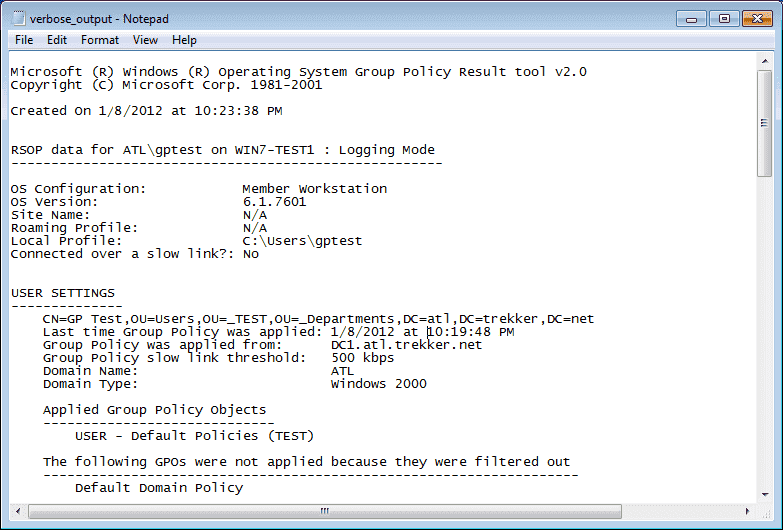
If you don’t want pretty reports or want the output as text, you can run gpresult.exe with different options to get the output in text. The /r option will give you a pretty limited report that includes everything except the actual settings that are being applied. Personally, I like the verbose output with the /v option. By default, the output will be shown in the Command Prompt window. You can run gpresult.exe /v >> verbose_output.txt to save the output into a text file. If you want total information overload, /z provides “super-verbose” information.


gpresult verbose text output

RESULTANT SET OF POLICY (LOGGING)

Resultant Set of Policy (Logging) is available in the GPMC by right-clicking on a user or computer object, click All Tasks, and click Resultant Set of Policy (Logging). I personally prefer running gpresult.exe on the client side. RSoP Logging requires that the management station that you’re using have the ability to communicate with the remote computer which isn’t always available in every environment. Even if I don’t have physical access to or the ability to remote control the computer, I can have the end user email me the output of gpresult.exe for troubleshooting. I’ve even known people to stick a script on the computer that the user just has to click on to get the output without any pesky command line typing. RSoP Logging also gives the same output as RSoP planning, so it can be a little hard to look at. The output of gpresult.exe is much easier to look at and search.

NEXT STEPS

So now you know you have a problem and you have enough information to hopefully track it down. First, did the GPO apply? And, if it wasn’t, was it denied? You can get some of this in the Event Log, but it is usually easier to check your gpresult.exe output since both pieces of information should be there. If it didn’t apply or got denied, check the Event Log for more information about why the GPO didn’t apply or was denied. The potential number of possible possibilities you’ll see there are too great to discuss here, but you should get something good enough to search for online to resolve the problem. The typical causes are things like the Security Filtering, link not being enabled, GPO Status may have user or computer disabled, and issues with WMI filtering.

If the GPO did apply, but you’re missing settings, try a gpupdate.exe just to see if the client hasn’t refreshed. You’ll also want to refer to the gpresult.exe output here too. You may have a system on a slow link, a setting that isn’t applicable to the current OS, another setting taking precedence, loopback processing that is disabling the setting, or client side extension (usually Group Policy Preferences or third-party products) problems. If the output from gpresult.exe doesn’t tell you where the problem is, the Event Log should.

 PART 5: ACTIVE DIRECTORY PROBLEMS

DNS

If you’ve gotten to the point where it looks like Active Directory (AD) is the problem, you’re most likely looking at some kind of replication issue. By far, the most common cause of AD replication problems (short of failed DCs) is DNS. Are you using AD integrated DNS? Are your DCs pointing to each other for DNS? Are the firewalls between each DC open on the correct ports?

EVENT LOG

So the obvious place to look first is the Event Log. If you’re having replication problems, you’ll have errors in the Event Log, most likely a lot of them. Take a look here first for anything actionable.

GPOTOOL

GPOTool.exe is a handy utility that Microsoft puts into the Microsoft Product Support Reports suite of utilities. It is buried a bit, but after extracting the executable before installing the tools,GPOTool.exe can be found in your computer’s temp.

Running GPOTool.exe from one of your DCs without any switches will run through all of your GPOs and verify that your Group Policy Templates and Containers are synced and consistent across all of the DCs. You can also use the /gpo option if you just want to check one specific GPO.


GPOTool
SYSVOL REPLICATION

Are you still using FRS for Sysvol replication? Move to DFSR.

If you’re stuck on FRS, Microsoft has a great tool for troubleshooting FRS replication issues calledUltrasound.

If you’ve moved on to DFSR, you can run diagnostics by running the DFS Management snap-in, go to Replication, Domain System Volume, right-click and choose Create Diagnostic Report. Choose Health Report and you can stick mostly to the defaults. On the Options tab, make sure to change your Reference Member to the PDC Emulator (or the machine you typically connect to for editing Group Policy).


DFS Diag

As you can see, my one DC isn’t having replication problems (thank goodness!). If it was, you would get some nice errors or warning that you could use to track down the root cause of the problem.


DFS Diag Report

In the last post of this series I will cover a few common problems.